The Best Monitor for Work
From compact 24-inch models to ultrawide 4K displays, find the perfect monitor for work. We compared specs and expert reviews to pick the best.
 By Irene Hopkins
Updated September 10, 2026
By Irene Hopkins
Updated September 10, 2026
When you spend eight or more hours a day staring at a screen, the monitor you choose directly affects your productivity, comfort, and eye health.
A well-selected display can reduce headaches, improve task-switching speed, and make countless spreadsheets, documents, and design software feel less fatiguing.
With so many options, from compact 24-inch panels to ultrawide 4K behemoths, finding the right fit for your work style and budget can be overwhelming.
That’s where BestProducts comes in: we research, compare, and score each model so you can make a confident choice.
Our team evaluates monitors by analyzing specifications, expert review consensus, and verified buyer feedback. Every product receives a BP Score on a 0-to-10 scale based on consistent criteria.
Whether you’re looking for a dedicated productivity monitor or an all-around workhorse, our curated list below covers the top contenders. Read on for our top picks, a detailed buying guide, and answers to common questions.
| Award | Product | BP Score About BP ScoreThe BP Score is our own rating from 0 to 10, based on performance, design and build, ease of use, and value. It reflects independent research and is never influenced by manufacturers, retailers, or affiliate commissions. Learn more › | |
|---|---|---|---|
| Best Overall |
 Dell SE2426H 23.8-inch IPS 144Hz Monitor
|
9.2/10 | Buy |
| Best Budget |
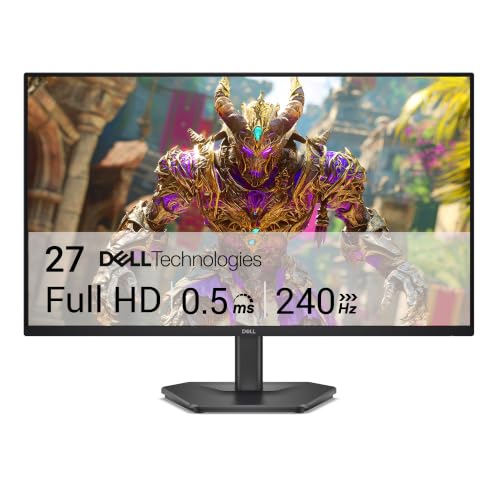 Dell SE2726HG 27-inch FHD 240Hz IPS Gaming Monitor
|
9.2/10 | Buy |
| Best Value |
 Dell S2425HSM 24-inch 144Hz FHD Monitor
|
9.2/10 | Buy |
 Samsung Odyssey G5 G51F 27" QHD 1440p Monitor
|
9.2/10 | Buy | |
| Best Premium |
 Samsung LS34C502GANXZA 34-Inch Ultra-WQHD Monitor
|
9.2/10 | Buy |
 LG 27UP850K-W 27-Inch 4K UHD IPS Monitor
|
9.2/10 | Buy | |
 MNN 15.6" FHD USB-C Portable Monitor
|
9.1/10 | Buy | |
 Acer KB272 G0bi 27" 120Hz IPS Monitor
|
9.1/10 | Buy | |
 Samsung S36GD 27-Inch 1800R Curved FHD Monitor
|
9.1/10 | Buy | |
 ViewSonic VX3276-MHD 32" 1080p IPS Monitor
|
9.1/10 | Buy | |
 Sceptre C345B-QUT168 34-inch Curved Ultrawide WQHD
|
9.1/10 | Buy |
Dell SE2426H 23.8-inch IPS 144Hz Monitor
This Dell monitor combines a 144Hz refresh rate and 1ms MPRT for fluid motion across work and gaming. Its IPS panel provides wide 178-degree viewing angles and consistent color, while TUV 3-star certification reduces blue light without sacrificing color quality.
Pros
- High 144Hz refresh rate for smooth motion
- Fast 1ms MPRT reduces motion blur
- IPS panel delivers accurate colors
- TUV certified low blue light eye comfort
- Thin bezels for immersive viewing
Cons
- Only 1920x1080 resolution
- No built-in speakers
- Limited ergonomic adjustability (tilt only)
Dell SE2726HG 27-inch FHD 240Hz IPS Gaming Monitor
This 27-inch gaming monitor from Dell packs a 240Hz refresh rate and 0.5ms response time for exceptionally smooth gameplay. With FreeSync Premium and 99% sRGB coverage, it's a solid choice for competitive gamers who value both speed and color accuracy.
Pros
- Excellent 240Hz performance for competitive gaming
- Fast 0.5ms response time reduces motion blur
- FreeSync Premium works with PC and console
- Accurate colors with 99% sRGB coverage
- Eye comfort certification without sacrificing color
Cons
- Only FHD resolution on a 27-inch panel
- Limited ergonomics (tilt only, no height adjust)
- No built-in speakers or USB hub
Dell S2425HSM 24-inch 144Hz FHD Monitor
The Dell S2425HSM combines a smooth 144Hz refresh rate with a 1500:1 contrast ratio for clear, tear-free visuals. Integrated dual 3W speakers and a versatile stand with height, tilt, pivot, and swivel adjustments make it a solid mid-range choice for work and entertainment.
Pros
- 144Hz refresh rate for smooth motion
- 1ms MPRT reduces motion blur
- Integrated dual 3W speakers
- Fully adjustable stand (height, tilt, pivot, swivel)
- TUV-certified low blue light without color shift
Cons
- Only FHD resolution (1080p)
- Limited connectivity (HDMI only)
- No USB ports or built-in USB hub
Samsung Odyssey G5 G51F 27" QHD 1440p Monitor
This 27-inch QHD gaming monitor from Samsung delivers sharp 1440p visuals with a fast 180Hz refresh rate and 1ms response time, making it a solid choice for competitive gamers. Its HDR10 support and AMD FreeSync help reduce screen tearing and enhance contrast for more immersive gameplay.
Pros
- Sharp QHD resolution with high pixel density
- Fast 180Hz refresh rate and 1ms response
- HDR10 for more vivid contrast
- AMD FreeSync for smooth, tear-free gameplay
- Fully adjustable ergonomic stand
Cons
- No built-in speakers
- Limited connectivity options
- HDR performance may not match premium models
Samsung LS34C502GANXZA 34-Inch Ultra-WQHD Monitor
For multitaskers, the 34-inch ViewFinity S50GC uses a 21:9 Ultra-WQHD panel to give you room for side-by-side work without a second screen. A 100Hz refresh rate and AMD FreeSync make motion smoother in games and video, while HDR10 support adds more than 1 billion colors. Eye care features adjust brightness to your room, and PIP/PBP let you monitor two inputs at once.
Pros
- Wide 21:9 screen with minimal bezel
- 100Hz refresh rate keeps motion smooth
- HDR10 delivers over a billion colors
- FreeSync reduces tearing in games
- PIP/PBP support two inputs at once
Cons
- 5ms response is not the fastest for competitive gaming
- 300 cd/m² brightness limits HDR impact
LG 27UP850K-W 27-Inch 4K UHD IPS Monitor
This 27-inch LG UltraFine monitor delivers sharp 4K UHD visuals with 95% DCI-P3 color gamut and VESA DisplayHDR 400. Its USB-C port provides 90W power delivery, and built-in stereo speakers with MaxxAudio enhance the experience.
Pros
- Excellent color accuracy and coverage
- USB-C with 90W power delivery
- Versatile port selection
- Built-in speakers with MaxxAudio
- Ergonomic stand adjustments
Cons
- Only 60Hz refresh rate
- No built-in webcam
- Limited HDR peak brightness at 400 nits
MNN 15.6" FHD USB-C Portable Monitor
This portable monitor delivers a crisp 1080p IPS display and simplified connectivity via dual USB-C ports. Its smart cover doubles as a stand, making it a convenient second screen for travelers and remote workers on the go.
Pros
- Full HD IPS panel with HDR support
- Plug-and-play dual USB-C ports
- Lightweight and ultra-slim design
- Protective smart cover acts as stand
- Multiple display modes (copy, extend, portrait)
Cons
- Requires USB-C DP Alt Mode or Thunderbolt 3
- No built-in battery for true portability
- Glossy screen can cause glare in bright light
Acer KB272 G0bi 27" 120Hz IPS Monitor
This 27-inch IPS monitor from Acer delivers a 120Hz refresh rate and 1ms response time, making it a solid budget-friendly choice for casual gamers. FreeSync compatibility helps reduce screen tearing, though the 250-nit brightness is average for indoor use. It's a straightforward option for smooth motion without premium extras.
Pros
- 120Hz refresh rate for smooth motion
- 1ms response time minimizes ghosting
- Adaptive-Sync (FreeSync) reduces tearing
- IPS panel provides wide viewing angles
- Full HD resolution is sharp for everyday use
Cons
- 250-nit brightness is modest
- No built-in speakers
Samsung S36GD 27-Inch 1800R Curved FHD Monitor
This 27-inch curved FHD monitor from Samsung wraps around your field of vision to enhance depth perception and minimize distractions. With a 100Hz refresh rate and Game Mode, it delivers smooth performance for gaming and video, while TUV-certified eye comfort technology reduces strain during long sessions.
Pros
- Curved screen enhances immersion
- 100Hz refresh rate for smooth motion
- Game Mode improves gaming visuals
- Eye care technology reduces strain
- Flexible connectivity options
Cons
- Only FHD resolution, not 4K
- No built-in speakers mentioned
ViewSonic VX3276-MHD 32" 1080p IPS Monitor
This 32-inch monitor from ViewSonic delivers a large, immersive display for home entertainment and daily office tasks. Its IPS panel ensures wide viewing angles, while eye-care features like Flicker-Free and Blue Light Filter reduce fatigue during long sessions. A solid choice for movie watching and general productivity, though not for high-end gaming or critical color work.
Pros
- Large 32-inch IPS panel with wide viewing angles
- Flicker-Free and Blue Light Filter for eye comfort
- Multiple inputs: HDMI, DisplayPort, VGA
- ViewMode presets for different tasks
- Ultra-slim bezels for multi-monitor setups
Cons
- 1080p resolution on 32-inch screen lowers pixel density
- 75Hz refresh rate not ideal for competitive gaming
Sceptre C345B-QUT168 34-inch Curved Ultrawide WQHD
This ultrawide monitor brings vivid WQHD detail and fast 1ms response to gamers seeking an immersive curved display. With 99% sRGB coverage and built-in speakers, it covers both creative and everyday use.
Pros
- Sharp WQHD ultrawide resolution
- Fast 1ms response time for gaming
- High color accuracy with 99% sRGB
- Immersive R1500 curve
- Built-in speakers save desk space
Cons
- No HDMI input mentioned
- Limited ergonomic adjustability likely
- Speakers may lack deep bass
Best Monitor for Work Buying Guide
Panel Type and Image Quality
The panel technology determines color accuracy, viewing angles, and contrast. In-plane switching (IPS) panels offer wide viewing angles and consistent colors, making them the top choice for spreadsheet work, photo editing, and video conferencing.
Vertical alignment (VA) panels deliver deeper blacks and higher contrast, which can be helpful for watching media between tasks, but they often shift color at off-angles.
Twisted nematic (TN) panels have faster response times but suffer from poor viewing angles and washed-out colors, so they are rarely recommended for productivity.
For most work environments, an IPS display is the sweet spot. Many modern monitors also use LED backlighting, and you can explore the nuances in our best LED monitor guide.
Keep in mind that pairing a high-quality panel with a capable desktop PC ensures you get the full benefit of accurate colors and smooth performance.
Resolution and Screen Size
Resolution dictates how sharp text and images appear. Full HD (1920×1080) is still adequate for basic office tasks but can feel cramped on larger screens.
Quad HD (2560×1440) offers a noticeable improvement in clarity and workspace, and it’s a favorite among multitaskers who keep multiple windows open. 4K UHD (3840×2160) provides exceptional detail, ideal for designers, programmers, and anyone who reads dense documents all day.
Screen size ranges from 24 to 34 inches for work monitors. A 24-inch panel is compact for small desks, while 27 inches balances screen real estate with desk footprint. Ultrawide 34-inch models can replace dual-monitor setups. For guidance on intermediate resolutions, check our best QHD monitor roundup.
Refresh Rate and Response Time
Refresh rate affects smoothness of on-screen motion. For standard office work, 60 Hz is sufficient, but higher rates (75, 120 Hz) reduce perceived flicker and can make scrolling and cursor movement feel more fluid.
Response time (gray-to-gray) matters less for productivity than for gaming, though 5 ms or lower helps avoid ghosting when moving complex spreadsheets or 3D models.
If you frequently read long articles or code, a monitor with a higher refresh rate and low blue-light emission can reduce eye strain. Our best monitor for reading guide dives deeper into features that enhance readability during extended sessions.
Connectivity and Ergonomics
Check what ports your computer supports. HDMI and DisplayPort are standard, but USB-C with power delivery is increasingly valuable, it can charge a laptop while transmitting video, reducing cable clutter.
Ergonomic adjustments (height, tilt, swivel, pivot) are critical for maintaining a comfortable posture over long workdays. A monitor that can be mounted on an arm adds further flexibility; our best dual monitor arm article covers the top mounting solutions.
Pairing your monitor with an office chair that supports proper posture completes an ergonomic workstation. Together, these elements help prevent neck and back pain.
Special Features
Modern work monitors often include extras that boost convenience. HDR10 support improves contrast and color for video calls and media. Built-in speakers save desk space, though external speakers usually sound better.
AMD FreeSync or NVIDIA G-Sync can eliminate screen tearing if you occasionally game. A low-blue-light mode and flicker-free technology are essential for reducing eye fatigue during all-day use.
Some monitors offer a built-in KVM switch or picture-by-picture mode, allowing you to control two computers from one keyboard and mouse.
Those with high pixel density are ideal for detailed work; our best 2560×1440 monitor selections highlight models that strike a great balance between sharpness and performance.
Why You Should Trust Us
BestProducts has been a trusted source for independent product reviews. We do not conduct our own product trials; our evaluations are grounded in research, published data, expert review consensus, and verified buyer feedback.
Every monitor in this guide was scored using the BP Score system, a 0-to-10 scale that weighs specifications, performance metrics, and real-world user experiences against a consistent set of criteria.
Our editorial team selects products based on market availability and relevance, not on affiliate commissions. For more details on our methodology, visit our Computers & Office section.
Final Thoughts
After analyzing dozens of models, these monitors stand out for their combination of features, reliability, and value. Each has earned a high BP Score, reflecting strong performance across all our evaluation criteria.
- Best Overall: LG 27UP850K-W 27-inch 4K UHD Monitor, Exceptional 4K clarity, wide color gamut, and USB-C charging make it the definitive choice for productivity.
- Best Budget: Dell 24 Monitor SE2426H, Affordable 1080p IPS panel with a fast 144 Hz refresh rate for both work and light gaming at an unbeatable price.
- Best Ultrawide: Sceptre 34-Inch Curved Ultrawide WQHD Monitor, Immersive 3440×1440 resolution and a 1500R curve provide ample multitasking real estate.
- Best Portable: MNN 15.6″ FHD Portable Monitor, Lightweight and versatile, perfect for dual-screen setups on the go or small desks.
Whether you prioritize 4K clarity, an ultrawide canvas, or a compact budget option, one of these monitors will elevate your daily workflow. Compare the full list above to see detailed scores and reviews.
Frequently Asked Questions
What size monitor is best for work?
For most people, a 27-inch monitor offers the best balance of screen space and desk fit. If you need more real estate, a 34-inch ultrawide can replace dual monitors. Smaller 24-inch displays work well for compact desks or secondary screens.
Pair your choice with a powerful laptop or desktop to maximize productivity.
Is a 4K monitor worth it for office work?
Yes, if you work with detailed spreadsheets, code, or design software, 4K provides crisp text and a spacious canvas. It also improves video call clarity.
However, 4K requires a graphics card that can drive the resolution at your desired refresh rate. For purely document work, QHD may be a more budget-friendly compromise.
Can I use a gaming monitor for work?
Absolutely. Many gaming monitors now offer IPS panels, high color accuracy, and ergonomic stands that suit office tasks. Their higher refresh rates can make scrolling feel smoother. Just ensure the monitor has sufficient connectivity (USB-C or HDMI) for your laptop or desktop PC.
What connectivity should I look for in a work monitor?
At minimum, look for HDMI and DisplayPort inputs. If you use a modern laptop, USB-C with power delivery (60 W or higher) is ideal, it handles video, data, and charging through one cable.
A few USB-A ports on the monitor make it easy to connect peripherals like an external drive.
How important is ergonomic adjustability?
Very important. Height adjustability lets you set the top of the screen at eye level, reducing neck strain. Tilt, swivel, and pivot options further tailor the view to your posture. For the ultimate flexibility, consider a monitor arm.
Complement your setup with a comfortable mechanical keyboard to complete an ergonomic workstation.
About the author
Irene reviews desktop PCs and monitors for BestProducts, weighing performance, upgradability, and panel quality for work and home. She helps readers build a desk setup that stays fast and comfortable for years.