The Best Wacom Tablet
From entry-level pen tablets to 4K pen displays, these Wacom picks suit illustrators, animators, and designers with different budgets and workflows.
 By Clyde Spencer
Updated September 11, 2026
By Clyde Spencer
Updated September 11, 2026
A Wacom tablet is one of the most direct ways to bring digital illustration, photo retouching, and animation work to life.
If you are also weighing a general-purpose device, a standalone tablet may serve that need, but this guide focuses specifically on Wacom’s drawing tools.
The lineup includes pen tablets that work beside your monitor and pen displays that let you draw directly on a screen, so the best choice depends on your workflow, desk space, and creative goals.
In 2026, choosing the best Wacom tablet is about more than brand recognition. Differences in pen feel, screen quality, connectivity, and software support can change how comfortable and productive you are.
We base these recommendations on ongoing research across specifications, expert review consensus, and verified buyer feedback, so you can compare the options with confidence.
Below, you will find the top picks, followed by a buying guide that explains what to look for in the best Wacom tablet for your needs.
| Award | Product | BP Score About BP ScoreThe BP Score is our own rating from 0 to 10, based on performance, design and build, ease of use, and value. It reflects independent research and is never influenced by manufacturers, retailers, or affiliate commissions. Learn more › | |
|---|---|---|---|
| Best Overall |
 Wacom MovinkPad 11 Android Drawing Tablet
|
9.2/10 | Buy |
| Best Budget |
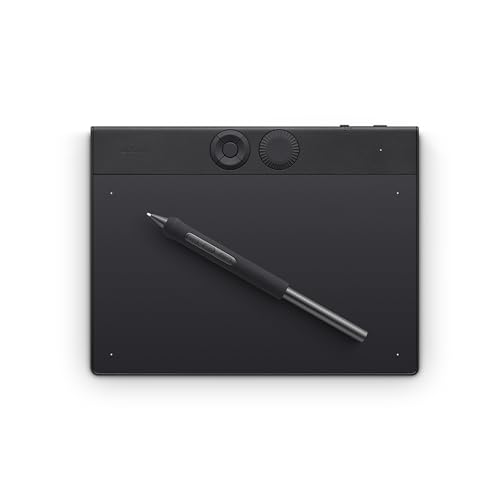 Wacom Intuos Pro Small Bluetooth Tablet
|
9.1/10 | Buy |
| Best Value |
 Wacom Intuos Pro Medium Pro Pen 3
|
9.1/10 | Buy |
| Best Premium |
 Wacom Cintiq 16 2.5K Drawing Tablet
|
9.1/10 | Buy |
 Wacom One Medium Drawing Tablet
|
8.6/10 | Buy | |
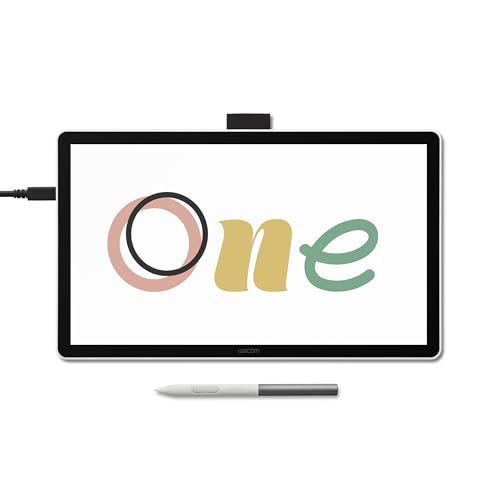 Wacom One 14 Drawing Tablet with 14" Display
|
8.6/10 | Buy | |
 Wacom Intuos Small Bluetooth Drawing Tablet
|
8.4/10 | Buy | |
 Wacom Movink 13 OLED Drawing Tablet
|
8.3/10 | Buy | |
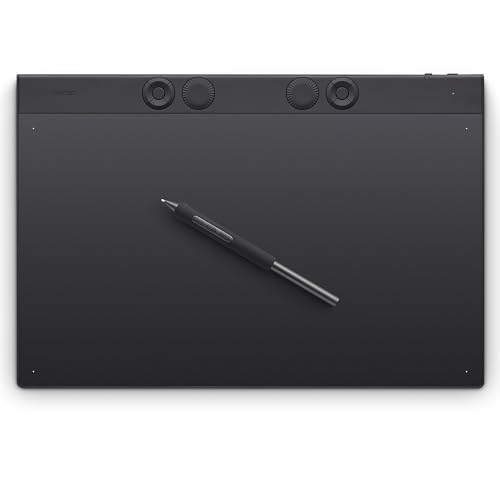 Wacom Intuos Pro Large Bluetooth Drawing Tablet
|
8.3/10 | Buy |
Wacom MovinkPad 11 Android Drawing Tablet
This all-in-one Android tablet is built for mobile artists, with a paper-like etched glass screen and a battery-free Pro Pen 3 that delivers 8,192 levels of pressure. Its slim 1.3-pound design and included creative software make it a portable sketchbook alternative for digital sketching and note-taking.
Pros
- No computer required for drawing
- Excellent pen feel with paper-like texture
- Highly portable at 1.3 pounds
- Includes creative software trials
Cons
- 128GB storage may limit large art projects
Wacom Intuos Pro Small Bluetooth Tablet
For digital artists seeking a compact yet powerful drawing tablet, the Wacom Intuos Pro Small delivers professional-grade precision with its ProPen 3 technology. Its 8192 levels of pressure sensitivity and tilt support ensure smooth strokes, while the customizable controls and wireless Bluetooth make it a versatile tool for creative workflows.
Pros
- ProPen 3 with 8192 pressure levels and tilt
- Customizable grip and button layout
- 5 ExpressKeys and mechanical dial for shortcuts
- Wireless Bluetooth and USB connectivity
- Slim magnesium design for portability
Cons
- No built-in display requires external monitor
- Smaller active area compared to larger models
Wacom Intuos Pro Medium Pro Pen 3
The Wacom Intuos Pro Medium is a professional-grade drawing tablet that feels like pen-on-paper with its 8192 pressure levels and tilt support. Its customizable dials and ExpressKeys boost workflow, making it ideal for serious illustrators and designers.
Pros
- Excellent pen precision with 8192 levels
- Customizable grip for comfort
- Replaceable battery long life
- Bluetooth wireless freedom
- Wide active area in small footprint
Cons
- No built-in display
- Medium size may need desktop space
- Premium pricing
Wacom Cintiq 16 2.5K Drawing Tablet
The Wacom Cintiq 16 delivers a 16-inch 2.5K IPS display with wide color coverage and the latest Pro Pen 3 for high-precision digital art. It is ideal for creatives seeking a plug-and-play pen display with vibrant colors and tilt support.
Pros
- High-resolution 2.5K display
- Wide color gamut (99% DCI-P3)
- Responsive Pro Pen 3 with tilt
- Easy USB-C connectivity
- Built-in stand for ergonomic use
Cons
- Non-touch display
- Extra stand needed for adjustable angles
- Requires compatible USB-C port or additional cables
Wacom One Medium Drawing Tablet
This entry-level drawing tablet offers a natural pen-on-paper feel with a battery-free pen that supports tilt recognition and 4096 levels of pressure. It connects via USB-C to Windows, Mac, Chromebook, and Android devices, making it a versatile choice for beginners and casual digital artists.
Pros
- Battery-free pen requires no charging
- Tilt recognition for natural strokes
- 4096 levels of pressure sensitivity
- Customizable pen buttons for shortcuts
- Lightweight and slim for easy portability
Cons
- May require USB-A adapter for some devices
Wacom One 14 Drawing Tablet with 14" Display
This Wacom tablet pairs a crisp 14-inch laminated screen with a battery-free pen for a precise, responsive drawing experience. It covers 98% sRGB and comes with creative software trials, making it a reliable starter kit for digital artists.
Pros
- Laminated Full HD display with paper-like texture
- Battery-free pen needs no charging
- 98% sRGB color accuracy for vibrant art
- Easy plug-and-play USB-C setup
Cons
- Requires additional converter for HDMI connections
- Software trials not full versions
Wacom Intuos Small Bluetooth Drawing Tablet
A compact wireless drawing tablet that uses Wacom's battery-free EMR pen for precise, natural input. It's a solid entry-level choice for digital sketching, photo editing, or note-taking, and includes creative software to get started.
Pros
- Industry-leading pen precision
- Wireless Bluetooth connectivity
- Includes software and training
- Compact and lightweight design
- Battery-free pen never needs charging
Cons
- Small active area may feel cramped
- No built-in display
- Higher price than some competitors
Wacom Movink 13 OLED Drawing Tablet
The Wacom Movink 13 combines a vibrant OLED display with an exceptionally thin and lightweight design, making it highly portable for artists on the move. Its Pro Pen 3 delivers precise 8K pressure sensitivity and customizable side switches, while the touchscreen and ExpressKeys allow for efficient navigation. Ideal for creative professionals who need a high-quality pen display that travels easily.
Pros
- Weighs under 1 pound for easy portability
- OLED display with 100,000:1 contrast ratio for vivid colors
- Pro Pen 3 with 8,192 pressure sensitivity levels
- Touchscreen with customizable ExpressKeys and shortcuts
- Supports Adobe RGB, sRGB, DCI-P3 and more color spaces
Cons
- Requires a connected computer for power and data
- Only available in a single 13-inch size
Wacom Intuos Pro Large Bluetooth Drawing Tablet
The Wacom Intuos Pro Large is a professional pen tablet featuring the Pro Pen 3 with 8192 pressure levels and tilt support. Its wireless Bluetooth connectivity, 10 ExpressKeys, and two mechanical dials make it a versatile tool for artists and designers seeking precision and efficiency.
Pros
- Pro Pen 3 with 8192 pressure levels and tilt support
- 10 customizable ExpressKeys and two mechanical dials
- Wireless Bluetooth with multi-computer switching
- Sleek and durable magnesium design
- 16:9 format compatible with multiple monitors
Cons
- No built-in display for direct drawing
- Large footprint requires substantial desk space
Best Wacom Tablet Buying Guide
Pen Tablet or Pen Display?
Most Wacom models fall into two broad categories. Pen tablets, like the Intuos and Intuos Pro lines, are pressure-sensitive input pads that work alongside a computer monitor.
They keep your hand on the desk and tend to be lighter and more affordable.
Pen displays, like the Cintiq, Wacom One, and Movink lines, let you draw directly on a screen, which feels more natural to many illustrators but usually takes up more desk space and costs more.
Your choice should start with the way you compose. Artists who prefer to watch the cursor while drawing often choose a pen tablet because it is compact and easy to travel with.
Artists who want a direct hand-to-screen experience will find a pen display worth the extra room. If you already use a travel-friendly monitor and want to keep your desk setup flexible, a pen tablet can pair with it easily.
Pen Technology and Pressure Sensitivity
Wacom’s current lineup uses either the older Pro Pen 2 or the newer Pro Pen 3, along with 8,192 levels of pressure on most models. Pressure sensitivity matters for line weight, brush behavior, and natural variability in strokes.
Tilt support, low initial activation force, and a comfortable grip all affect how closely the pen tracks your hand movement.
Some models also include additional pen buttons and an eraser. That may sound minor, but it can speed up your workflow significantly once you start switching between brushes, colors, and tools.
When comparing models, focus less on raw specifications and more on how the pen feels in your hand. The pen is the part of a drawing tablet you will touch for hours, so comfort matters.
Active Area, Resolution, and Aspect Ratio
Active area is the drawing surface on a pen tablet or the screen size on a pen display. Wacom categorizes most models as Small, Medium, or Large, and each size suits a different range of motion.
Small tablets work well in tight spaces and for casual sketching, while Medium and Large surfaces give your arm more room and allow broader, more natural strokes.
Resolution determines how precisely the tablet tracks the pen across the surface. Higher resolution means smoother diagonal lines and better control at fine zoom levels. Aspect ratio also matters because it should roughly match your monitor’s shape.
A mismatched aspect ratio can make circles look slightly stretched. If you plan to use multiple displays, check whether the tablet driver lets you assign the active area to the screen you actually draw on.
Connectivity and Compatibility
Connectivity options have expanded across the lineup. Bluetooth models make it easy to switch between a desktop and a laptop without unplugging cables, while USB-C connections provide stable power and data for pen displays.
Battery life, wireless range, and cable length can all affect how comfortable your working session feels.
Software compatibility is another major factor. Wacom drivers support the main creative applications on Windows and macOS, including Photoshop, Illustrator, Clip Studio Paint, and open-source tools. To keep the experience smooth, your computer also needs enough processing power and memory.
On a desktop, a capable workstation graphics card helps with large canvases; on a laptop, a high-performance Ryzen gaming laptop can handle heavy brush engines and complex layers.
Build Quality, Ergonomics, and Long Sessions
Drawing for long stretches puts pressure on your wrist, arm, neck, and eyes. A well-built tablet with a stable surface, angled stand support, and programmable ExpressKeys can reduce strain.
If you use a pen display, look for a stand with proper tilt, an anti-glare coating, and a comfortable viewing angle. Good lighting around your desk also helps prevent eye fatigue; an adjustable desk lamp makes a noticeable difference.
Don’t forget the rest of your setup. Some artists prefer to wear a lightweight multi-platform gaming headset during long sessions so they can listen to music or join a call without feeling weighed down.
Others like to keep a pair of Bluetooth speakers on the desk for reference audio. Even a quick break on a lightweight exercise bike between drawing sessions can help reset your posture.
Software and Bundled Apps
Every Wacom tablet includes access to software bundles that add value for new and intermediate users.
These bundles often include a limited version of a drawing program or a few months of a premium app, which is helpful if you are still building your creative toolkit.
The value of the bundle depends on the apps you already use, so it should not be the only factor in your decision.
Driver stability and ongoing updates are just as important. A good driver should remember per-app settings, let you customize ExpressKeys, and make it easy to switch between responsive pen modes.
Reliable software support matters in the long run, because a great pen is only useful when it works seamlessly with your favorite tools.
Why You Should Trust Us
BestProducts is an independent review publication. We do not conduct our own product trials; our evaluations are grounded in research, published data, expert review consensus, and verified buyer feedback.
Every product in this guide was assessed against a consistent set of criteria and scored on our 0 to 10 BP Score, which reflects real-world strengths, technical specifications, and long-term user satisfaction.
We evaluate Wacom tablets based on pen accuracy, pressure sensitivity, display quality, software support, portability, and value. We also monitor changing prices and availability, so the guidance here stays useful across the full lineup.
Our recommendations come from the same research framework we use across our electronics coverage, and we keep editorial decisions separate from any affiliate relationships.
Final Thoughts
After comparing the full Wacom lineup, the right model comes down to your workflow, desk space, and budget. The picks below earned some of the highest BP Scores in this category and cover a wide range of creative needs.
Best Overall: Wacom Cintiq 16 delivers a large QHD pen display and the direct drawing experience that many professionals want, backed by one of the strongest BP Scores in this lineup.
Best for Creative Professionals: Wacom Intuos Pro Medium combines the updated Pro Pen 3, responsive surface, and flexible shortcut controls in a comfortable size for daily studio work.
Best Budget Pick: Wacom Intuos Small keeps the entry price approachable while still offering a solid Wacom pen experience, making it a smart starting point for beginners.
Best Value Pen Display: Wacom One 14 brings a laminated full HD IPS screen into a more approachable tier for artists moving from a pen tablet to a display.
Best for Portable Sketching: Wacom MovinkPad 11 adds an Android display panel and Pro Pen 3 support in a slim, mobile-friendly format for sketching away from the desk.
Whichever form factor you choose, a Wacom tablet should feel like an extension of your hand rather than a barrier between you and the canvas.
For a wider view of drawing hardware and creative computing, our buying guide covers the important differences between pen tablets, pen displays, and general-purpose devices.
Frequently Asked Questions
Is a Wacom tablet worth buying?
For most digital artists, a Wacom tablet is worth the investment because of its reliable pen technology, long driver support, and strong resale value. The exact model matters more than the brand name.
A small Intuos can be enough for hobby sketching, while a professional who works on detailed illustrations may benefit from a larger Intuos Pro or a Cintiq pen display.
What is the best Wacom tablet for beginners?
Beginners usually do best with a compact pen tablet like the Wacom Intuos Small. It keeps the setup simple, takes up little desk space, and still gives you access to Wacom’s pressure-sensitive pen and software bundle.
If you already know that you prefer drawing directly on a screen, a Wacom One pen display is a more natural step forward.
What is the difference between Wacom Intuos and Wacom Intuos Pro?
Wacom Intuos is the entry-level line, while Intuos Pro is built for more demanding creative work. The Pro models include the newer Pro Pen 3, higher pressure sensitivity, customizable ExpressKeys, and a more premium surface.
They also tend to offer more responsive tracking and better wireless performance, which is why they score higher for professional use.
Do I need a pen display?
A pen display is not required to make great digital art, but it can make the process more intuitive. Drawing directly on the screen removes the mental step of watching the cursor while your hand moves on a separate pad.
If you have the desk space and budget, a pen display like the Wacom Cintiq 16 or Wacom One 14 is a comfortable upgrade.
Can I use a Wacom tablet for photo editing?
Yes, and photo editors often appreciate Wacom’s pressure sensitivity for tasks like masking, dodging, and precise retouching.
If you work with images from a digital camera, the pen gives you finer control than a mouse when fine-tuning skin texture, selecting complex edges, and painting adjustments.
A small or medium Intuos model is usually enough for this kind of work.
About the author
Clyde covers smartphones and tablets for BestProducts, balancing cameras, battery life, and display quality against price and how long each maker ships updates. He helps readers find the best value as the field shifts with every release.